
Source Sheet Translation
Source sheets contain English and Japanese columns by default, such as name and name_JP, or aka and aka_JP.
Source sheets should be placed in the EN or JP folders. The game does not actually require this — a mod can keep its only source sheet in CN and write the name column in Chinese — but EN / JP is where everyone expects to find it.
Note that SourceLocalization.json always wins over the sheet columns, EN and JP included. If a mod already has a json entry for a text, editing name in the sheet will look like it does nothing.
Adding Translations to Your Mod
To add translations for your mod's source sheets in languages other than English and Japanese:
- Make sure the mod is in your local
Packagefolder (workshop copies do not auto-export). - Switch the game to the target language — the translatable entries are exported on the spot (restarting also works).
A SourceLocalization.json file should now appear in your mod's LangMod/XX folder, where XX is the current language code, such as CN for Simplified Chinese.
Edit this json file to translate the source sheets.
Tip
For drama sheets and dialog.xlsx, see this section.
Providing Translations for Other Mods
Publishing a Translation Patch Mod
If you want to provide translations for someone else's mod:
- Copy the original mod into your local
Packagefolder (<Game Installation Directory>/Elin/Package). - Start the game in the language you want to translate into.
A SourceLocalization.json file should now appear in that mod's LangMod/XX folder, where XX is the current language code, such as CN for Simplified Chinese.
Edit this json file to translate the source sheets.
For drama sheets and dialog.xlsx, see this section.
After finishing the translation, you can:
- Send the translation file to the mod author.
- Publish a standalone translation patch mod that contains only
SourceLocalization.json. Do not include the source sheets.
For publishing a translation patch mod, see Elin Mod Package.
Updating a Translation Patch Mod
When the original mod updates:
- Put the latest version of the original mod into your local
Packagefolder. - Put your existing
SourceLocalization.jsonback into the original mod'sLangMod/XXfolder. - Start the game.
The game will automatically append any newly added, untranslated source-sheet entries to SourceLocalization.json, and remove entries whose source rows no longer exist.
After translating the new entries, update your mod. For update instructions, see Elin Mod Package, especially the Upload & Update section.
Tip
Drama sheets and dialog.xlsx do not automatically append new content. You need to compare and translate new entries manually.
Translating Drama Sheets and dialog.xlsx
Drama sheets and dialog.xlsx are not translated through json. Instead, you translate the sheets directly. Strictly speaking, they are not source sheets either.
For adding translations to your own mod:
You can use the Tiny Mita example mod below as a reference:

For more information, see Chara and Drama.
For translating someone else's mod:
- Copy the original mod's drama sheets and
dialog.xlsxinto the matching path under the target language folder. For example, copy them fromENorJPtoCN. - Add the matching language columns. For example, for Chinese you would add
text_CN. You can use the Tiny Mita example mod and the articles above as references. - Delete
text_ENandtext_JP, but keep thetextcolumn. Make sure every line has anidfirst: a line without anidis only ever read fromtext_JP, so deleting that column leaves it with no text at all.
Additional Notes
Force Overwriting an Existing json File
Click to expand
Under normal circumstances, starting the game only appends newly added untranslated entries to SourceLocalization.json (and removes ones whose source rows no longer exist).
If you need to re-export the entire file:
- Put the mod into
<Game Installation Directory>/Elin/Package. - Make sure the mod name has the
[Local]prefix, and make sure the mod is enabled (shown in blue). - Switch the game to the target language.
- Click the mod and choose Export texts for localization.
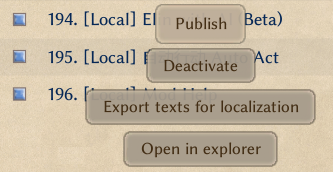
The game will regenerate LangMod/XX/SourceLocalization.json.
Warning
This rewrites the whole SourceLocalization.json. Loaded translations are preserved, but any hand-edits made after the game last loaded the file are lost — back it up first.
Another Way to Translate Source Sheets
Click to expand
Another Way to Translate Source Sheets
Besides translating directly inside the json file as described above, you can also translate inside the source sheets first and then export the result as a json file.
Let's use name_JP and name as an example of one column group:
- Columns with the
_JPsuffix are the Japanese columns. - In the same group, the column without a suffix is the English column, but it can also be used as the translation column.
- For example,
aka_JPandakaare another Japanese-plus-translation column group. - Columns without a suffix that are not part of such a group are gameplay data columns or other non-translation data, so do not translate them.
Because of this, you can first copy the source sheets into LangMod/XX.
Using Chinese as the target language as an example:
- Copy the source sheets from
LangMod/ENorLangMod/JPintoLangMod/CN. - Translate the no-suffix translation columns in each group.
- After translating, follow the overwrite steps above to regenerate the
jsonfile, then delete the source sheets you just copied intoLangMod/CN.
You only need one copy of the source sheets in your mod, and it only needs to be in either the EN or JP folder. If you are translating someone else's mod, you do not need to include source sheets in your translation patch. You only need the json translation file in the matching language folder, because the original mod already contains the source sheets.
You can use JSONLint to check whether your json is valid.
This workflow is better for manual, spreadsheet-first translation. The JSON export workflow above is usually better when translating with AI. If you use AI, remember to have it produce a terminology glossary.
Step 2: Drama Sheets and dialog.xlsx
At this point the source sheets are translated, but do not forget the drama sheets and dialog.xlsx. They are not translated through json.
Refer back to this section to finish those translations.
If you use AI translation, remember to reuse the glossary you made in step 1.
Tools
If you are not using a code editor, you can use JSONLint to validate your JSON.